Pore Size Distribution
Image Generation
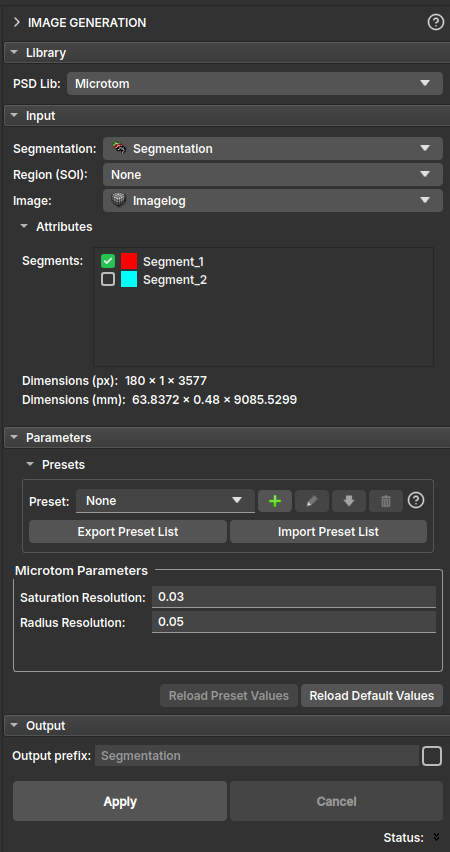
The Image Generation module allows you to analyze a segmented well log image and determine the Pore Size Distribution (PSD) of the log. This module offers two distinct libraries, Microtom and PoreSpy, each providing different methodologies to calculate the PSD.
Panels and their usage
 |
|---|
| Figure 1: Presentation of the Image Generation module. |
The Image Generation module interface is organized into a few sections
-
Library:

Figure 2: First section - Library. In this section, the library used for PSD calculation is selected.
-
Input:
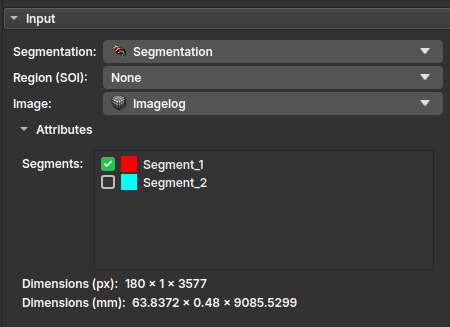
Figure 3: Second section - Input. - Segmentation: Segmentation of the well log image from which the PSD will be calculated.
- Region (SOI): Optional input. If a Segment of Interest (SOI) is selected, the PSD calculation will be limited to that specific region of the image, instead of processing the entire log. This can be useful for focusing on specific depth intervals or areas of interest within the log.
- Image: Well log image.
-
Parameters:
In this section, specific parameters for the selected library are configured. The available parameters will dynamically change based on the selected library. The parameters are initially filled with default values, but the user can modify them to suit their needs. The parameters for each library can be reset by clicking the 'Reload Default Values' button.
-
Microtom:
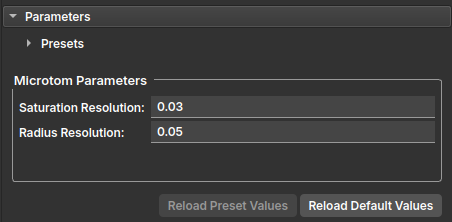
Figure 4: Third section - Parameters (Microtom). - Saturation resolution: Resolution of the saturation calculated. Determines a limit for the discretization of the PSD curve in saturation.
- Radius resolution: Resolution of the radii calculated. Determines a limit for the discretization of the PSD curve in radii.
-
Porespy:
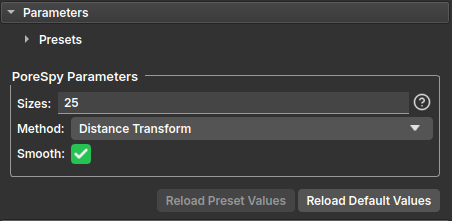
Figure 5: Third section - Parameters (Porespy). - Sizes: This input can be an integer, a comma-separated list of integers (e.g.,
25or1, 2, 3, 4) or empty. This is only used if the method isDistance TransformorConvolution. If a list of values is provided they are used directly. If a scalar is provided then that number of points spanning the min and max of the distance transform are used. If empty, then all the unique values in the distance transform are used, which may become time consuming. - Smooth: Indicates if protrusions should be removed from the faces of the spheres or not. Default is
True. - Method: Method used to calculate the result:
Distance Transform: Uses distance transforms to perform erosion and dilation for each radius in the image.Brute Force: Uses brute-force to inserts spheres at each voxel.ImageJ: Uses the brute-force method but reduces the number of insertion sites by 80-90% to speed up the process.Convolution: Uses FFT-based (Fast Fourier Transform) convolution to perform erosion and dilation for each radius in the image.
- Sizes: This input can be an integer, a comma-separated list of integers (e.g.,
The user also has the option to save parameter presets for each library, which can be useful for reusing specific configurations across different logs or projects. When a saved preset is selected, the corresponding parameters will be automatically filled in, facilitating quick module setup for future analyses.
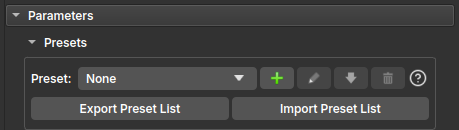
Figure 6: Third section - Parameters Presets. If a preset is selected and the parameter fields are edited, a warning will appear on the screen indicating that the value in the field differs from the one saved in the preset. This gives the user the option to save the modified values or reset them to the values saved in the preset by clicking the ‘Reload Preset Values’ button.
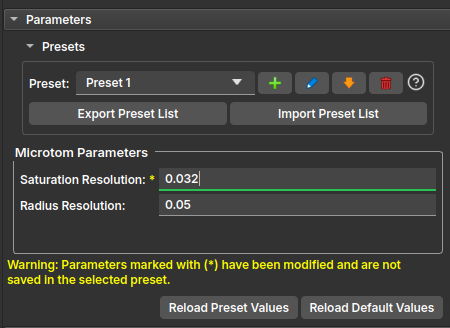
Figure 7: Third section - Parameters Presets (Warning). When exporting or importing preset files, the user can select which presets to export or import.
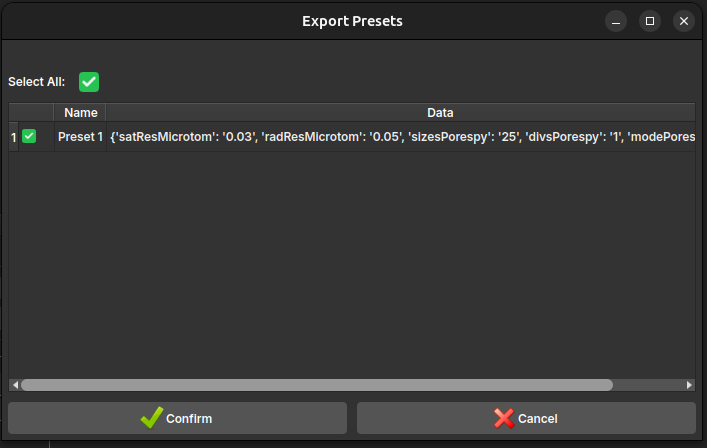
Figure 8: Third section - Parameters Presets (Import/Export). -
-
Output:
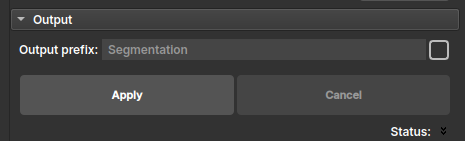
Figure 9: Fourth section - Output. Defines the prefix for the output node. By default, the prefix takes the same name as the input segmentation node with the
_PSDsuffix.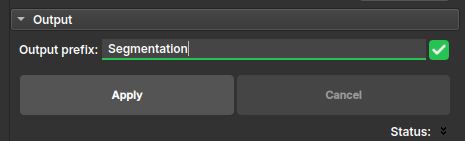
Figure 10: Fourth section - Output (Manual). The prefix can be manually renamed by checking the box next to the field.
Output
Upon successful execution, the module will generate a new image containing the pore size values in each voxel. It can be used as input in the Histogram Per Depth module to generate Probability Density Function (PDF) graphs of the pore sizes.
Histograms Per Depth
The Histograms Per Depth allows, starting from the output image of the Histograms Per Depth – where the value of each pixel represents the pore size at that position – to visualize the pore size distribution in the form of a series of histograms arranged along the depths.
Panels and their use
 |
|---|
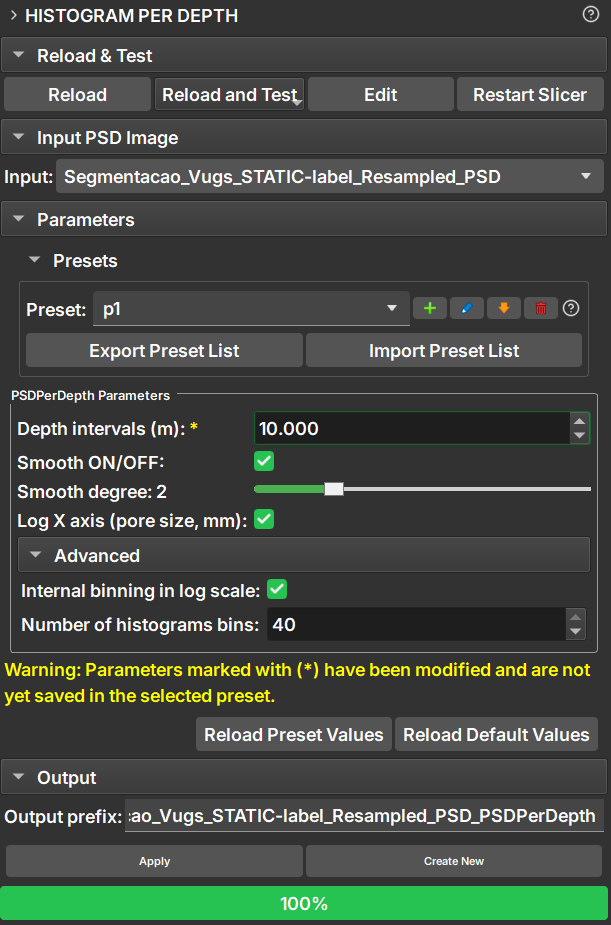
| Figure 1: Presentation of the Histograms Per Depth module. |
The interface of the Histograms Per Depth module is orgabized as follows:
-
Input:
- Input PSD Image: - Output image from the Image Log PSD module – where the value of each pixel represents the pore size at that position. When selecting an image, it is automatically opened in a new view if it is not already being displayed (left image in Figure 2). .
-
Parameters:
- Presets: Different combination of parameters (depth intervals, number of bins, horizontal scale) can be saved and loaded as presets
- Depth intervals (m): The depth thickness over which each histogram will be computed. For example, If an input image has 10m and Depth Intervals was set to 2m, the calculation will result in 5 histograms - the first covering 0-1m, the second 2-3m, ..., till 8-9m.
- Smooth ON/OFF: Optional application of a Savitzky-Golay filter to smooth the histograms
- Smooth degree: How much the histograms will be smoothed
- Log X axis (pore size, mm): Toggles the histograms visualization between linear and logarithmic horizontal scale
Advanced (change these with caution):
- Internal binning in log scale: For a geometric reason, the distribution of pore sizes is more diverse for smaller values (lots of small circles occupy the same area of a big circle...). This is why the pore sizes are, by default, distributed logarithmically, leading to better resolution at small pore sizes.
-
Number of histogram bins: This controls the horizontal resolution of the histograms - the more bins, the higher the resolution. The horizontal axis represents the pore sizes in mm. Increasing this number beyond the default makes the calculation slower.
-
Reload Preset Values: Restore the values of the Parameters to those of the current selected Preset
- Reload Default Values: Restore the values of the Parameters the moddule's default ones
-
Output:
Defines the prefix for the output node. By default, the prefix receives the same name as the input segmentation node with the suffix
_PSDPerDepth.
Output
 |
|---|
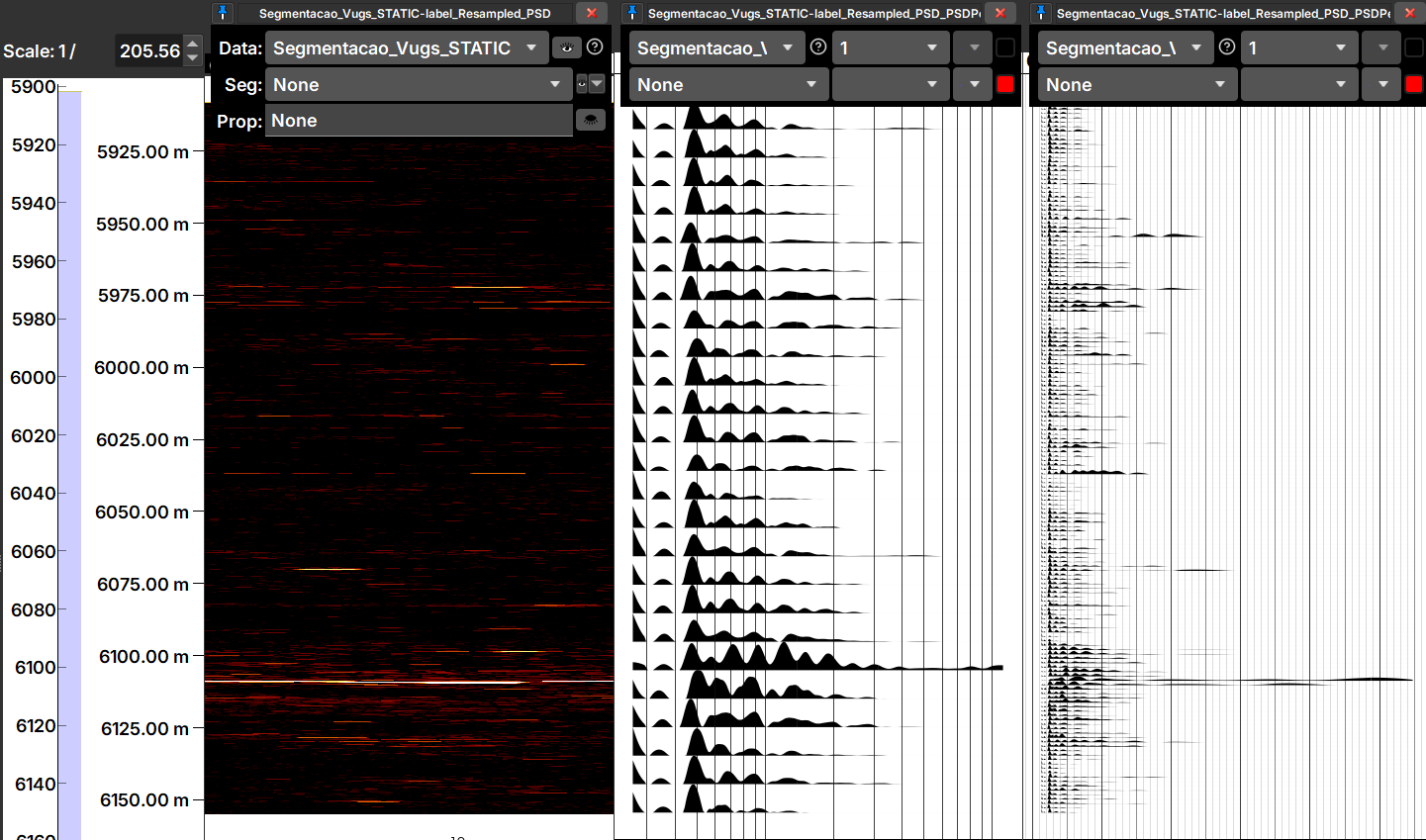
| Figura 2: In the center view, the Result of a Histogram Per Depth calculation, displayed as histograms. At right, another view, generated via Create New button (from this point on, this view will be updated at every parameter change, while the center view will remain as is). On the left view we see the input PSD image. |
After successful execution, the module will generate and display in a new view an image consisting of a series of histograms (Figure 2, at center), according to the parameters defined in the module. Every change on a parameter automatically triggers the recalculation of the histograms.
Clicking Create New generates a new view of histograms. From this point on, changes in parameters will be applied only to this new view - allowing the user to make comparisons.