Registration
Registration is used to align two images of the same sample, commonly utilized for slides (but with a different interface) when PP/PX exists. In Micro CT, we generally use it when we have images of the same sample, dry and saturated, or when the sample undergoes cleaning processes.
Three methods are available, each suited to a different situation:
- Fast Registration performs a global alignment: it recovers an arbitrary rotation and translation, with no need for the volumes to be close to begin with. It is specific to MicroCT, because it relies on assumptions about the dense features the two scans have in common. Use it as the first choice for paired MicroCT volumes (for example dry and saturated scans of the same sample).
- Manual Registration is completely general purpose: you set the transformation by hand. Use it when the automatic methods do not apply, or to bring the volumes close enough for General Registration to converge.
- General Registration (the BRAINSFit-based automatic registration) makes no assumptions about the image content, but only converges when the volumes are already nearly registered. Use it to refine an alignment that is already close, for instance after a manual registration.
A common workflow is to try Fast Registration first, fall back to aligning roughly by hand when it does not apply, and then run General Registration for the final adjustment.
Manual Registration
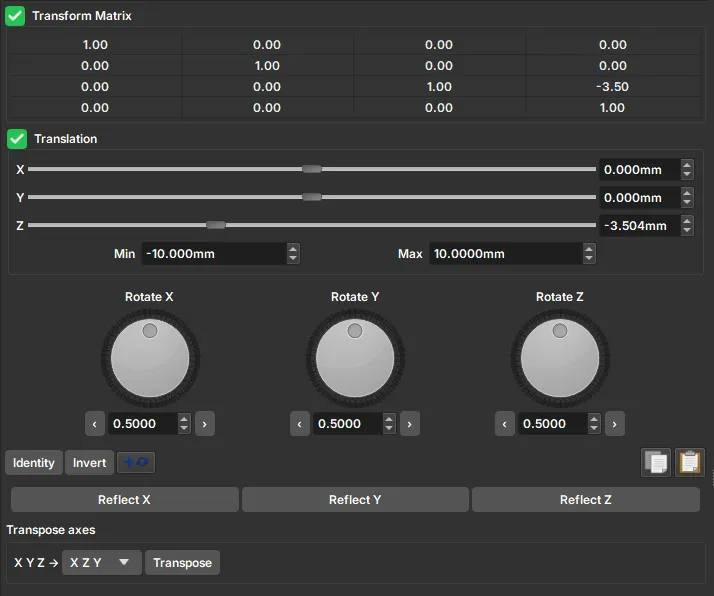
The manual registration interface features a transformation matrix that allows for a general affine transformation in the volume, given by the change of coordinates:
where \(\mathbf{r}\) is a vector with the original image coordinates and \(\mathbf{r'}\) are the transformed image coordinates. Thus, matrix \(\mathbf{A}\) will be responsible for applying scale transformations (main diagonal elements), rotations, reflections, and shear, and vector \(\mathbf{B}\) will be responsible for translations. The transformation matrix present in the manual registration interface is generally called an augmented matrix, allowing the transformation to be represented as a single matrix multiplication:
However, the most intuitive way to register the image is through the graphical elements present in the interface. Translations can be chosen either by sliders or by the selector on the right side; the Min and Max values represent the limits of these translations. Below the translation controls, the interface features rotating buttons associated with rotations around each axis; it is important to evaluate the axis pointing towards the computer screen when choosing the desired rotation. Furthermore, the interface also provides buttons to reflect the image along one of the axes and options to transpose the axes (swapping x for y, and so on).
Tip
It is common to find a pore or element with a very characteristic shape in one of the slices (green, red, or yellow windows) in the reference image (sometimes it may also be necessary to adjust the color scale, for example, by filtering high-attenuation elements). After finding such a characteristic shape, translations are performed along that direction until the same shape is recognized in the moving image (depending on the case, the element might be quite deformed or appear far from the original coordinate). After that, transverse translation transformations relative to the screen axis, rotations, and reflections can be performed so that the moving volume aligns with the reference one. After matching the images within the slice, one must still check how the other slices look, as other rotations around other axes can affect them.
Tip
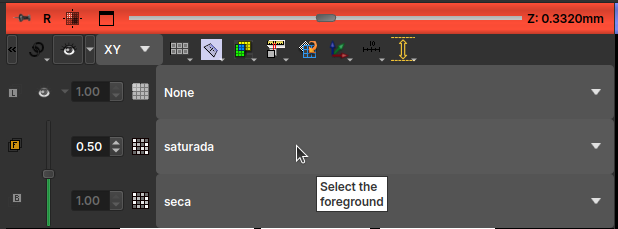
To compare the volumes during registration, one can choose one volume as foreground and the other as background, using the selection box in the top-left corner of each view. When selecting these two volumes, the interface allows changing the opacity between the two using the slider on the left of the selection, or by holding the Ctrl button + clicking and dragging the mouse from bottom to top within the viewing window.
General Registration
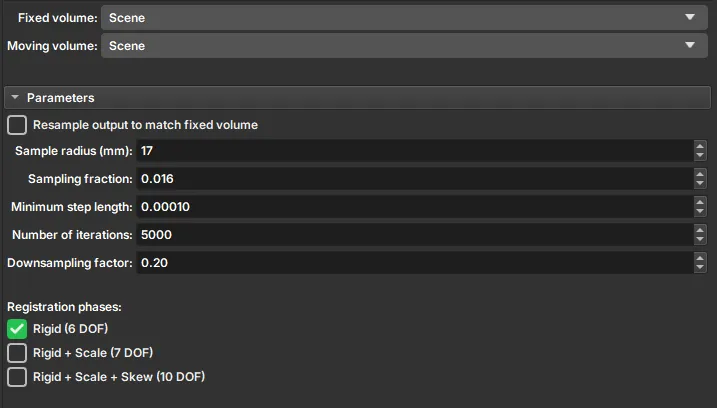
General Registration is the BRAINSFit-based automatic registration. It makes no assumptions about the image content, so it works on any pair of volumes, but it only converges when they are already nearly registered, so it is best used to refine an alignment produced by Manual Registration. Select a reference volume and a moving volume, and the transformation is found automatically. Transformations are applied to the "Moving volume" to match the "Fixed volume", and the result is saved as a new transformed volume, preserving the original and reference volumes.
The parameters used in general registration are:
- Sample Radius: radius of the sample in millimeters. This radius will be used to create a mask that identifies relevant data for registration.
- Sampling Fraction: the fraction of voxels from the Fixed volume that will be used for registration. The value must be greater than zero and less than or equal to one. Higher values increase computation time but can result in greater precision.
- Minimum step length: a value greater than or equal to 10-8. Each optimization step will be at least this size. When no more steps can be taken, registration is considered complete. Smaller values allow the optimizer to make more subtle adjustments but can increase registration time.
- Number of iterations: This parameter determines the maximum number of iterations before stopping optimization. Lower values (500–1000) force early termination but increase the risk of stopping before reaching an optimal solution.
- Downsampling factor: This parameter directly affects algorithm efficiency. High values (~1) can require a lot of execution time. Intermediate values, such as 0.3, have proven ideal for obtaining good results with reasonable computational cost.
- Registration phases: Choose the types of transformations the algorithm can apply to the original image.
- Rigid (6 DOF): is a transformation that only performs translations and rotations of the image, with 6 degrees of freedom: 3 translations (xyz) + 3 rotations.
- Rigid + Scale (7 DOF): can perform another type of transformation besides rigid ones; it can increase or decrease the image scale.
- Rigid + Scale + Skew (10 DOF): in addition to the previous transformations, it can perform shearing in different directions. These phases are on a scale where the first type of transformations, with fewer degrees of freedom, will deform the original image less, and the last can deform with more freedom.
Fast Registration
Fast Registration automatically aligns two MicroCT volumes of the same sample (for example a dry and a saturated scan) by matching the constellation of compact, high-attenuation inclusions ("blobs") visible in both. It recovers a rigid transform (rotation and translation) and is well suited to samples that share such dense features. Both volumes must be on the same voxel grid and spacing.
Select the Fixed volume, which stays in place, and the Moving volume, which receives the alignment transform, then click Apply. A progress bar reports feature detection and matching, which usually takes only a few seconds.
On success:
- The fixed and aligned moving volumes are overlaid in the slice views and cross-faded automatically (the Alignment preview), so you can confirm the alignment: features that stay put as the overlay fades indicate success. Use Pause, Show fixed, and Show moving to inspect either volume on its own.
- The resulting transformation matrix (moving → fixed) is shown and can be copied. The transform is applied to the moving volume non-destructively; use Harden transform to apply it permanently. Running again replaces the transform.
Tip
If automatic alignment fails, the module explains why (for example, too few features were detected, or no consistent alignment could be found) and offers a shortcut to Manual Registration, which opens with the same moving volume already selected. For difficult cases, it often helps to align roughly by hand first and then use an automatic method for fine-tuning.